Remote Comparison Pro
Pro feature
This feature requires a Pro licence. Activate your licence to unlock it.
Diffract can fetch a file from a remote source and compare it just like a local file. This is useful for checking a local config against the version running on a server, or comparing a file across two environments, without downloading it by hand first.
Either side of a comparison - or both - can be remote. The fetched content is held in memory and runs through the normal diff, syntax-highlight, and search pipeline.
Supported sources
| Prefix | Example |
|---|---|
http:// or https:// |
https://raw.githubusercontent.com/org/repo/main/config.yaml |
scp:// or user@host: |
scp://deploy@web01/etc/nginx/nginx.conf · deploy@web01:/etc/nginx/nginx.conf |
s3:// (Amazon S3 / S3-compatible) |
s3://my-bucket/configs/app.yaml |
az:// (Azure Blob Storage) |
az://my-container/configs/app.yaml |
gs:// (Google Cloud Storage) |
gs://my-bucket/configs/app.yaml |
ftp:// or ftps:// |
ftp://files.example.com/pub/readme.txt · ftps://user@host/dir/app.yaml |
SSH / SFTP
Files are read over SFTP with modern, encrypted OpenSSH defaults. The connection is read-only - Diffract never writes to the remote host.
- Address forms -
scp://user@host[:port]/path/to/fileor the shorthanduser@host:/path/to/file. The default port is22. - Keys - both ed25519 and RSA private keys in the OpenSSH format
(
ssh-keygen -t ed25519/-t rsa) are supported, including passphrase-protected keys. Classic PEM keys (BEGIN RSA PRIVATE KEY) are not supported; convert them withssh-keygen -p -f <key>.
Cloud object storage
Diffract reads from S3, Azure Blob, and Google Cloud Storage over their standard HTTPS APIs - no extra tools required. Objects are read-only.
- Amazon S3 (
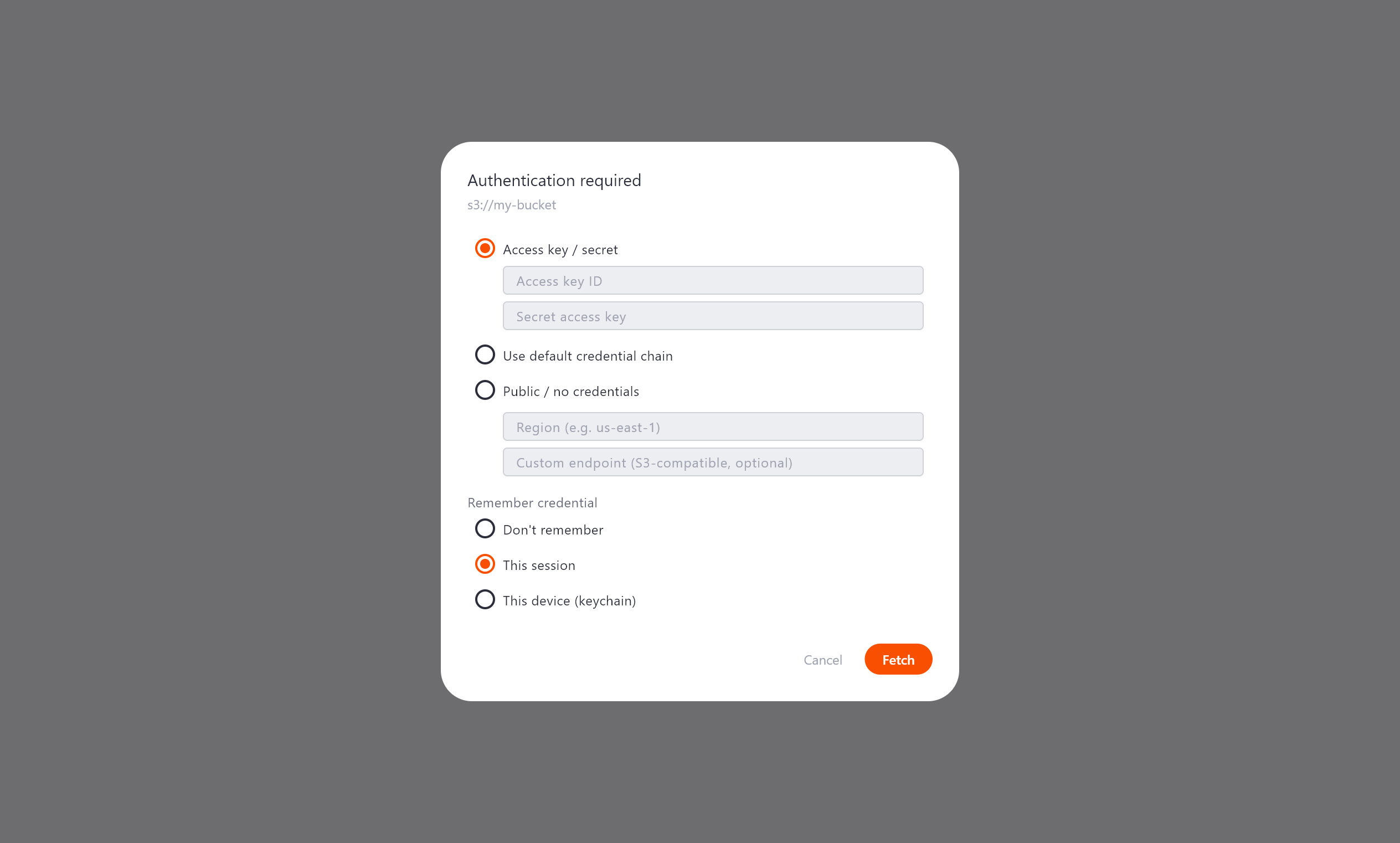
s3://bucket/key) - authenticate with an access key / secret (and region), or tick Use default credential chain to pick up credentials from the environment (AWS_ACCESS_KEY_ID/AWS_SECRET_ACCESS_KEY) or~/.aws/credentials. S3-compatible services (MinIO, Cloudflare R2, Wasabi) work through the same path - just set the Custom endpoint (e.g.http://localhost:9000). - Azure Blob (
az://container/blob) - enter the storage account name, then authenticate with a shared key or a pre-signed SAS token. - Google Cloud Storage (
gs://bucket/object) - paste an OAuth bearer token (for example fromgcloud auth print-access-token).
Public buckets/objects need no credentials - choose Public in the dialog.
FTP / FTPS
Diffract can read files and directories from legacy FTP servers. Access is read-only.
- Address forms -
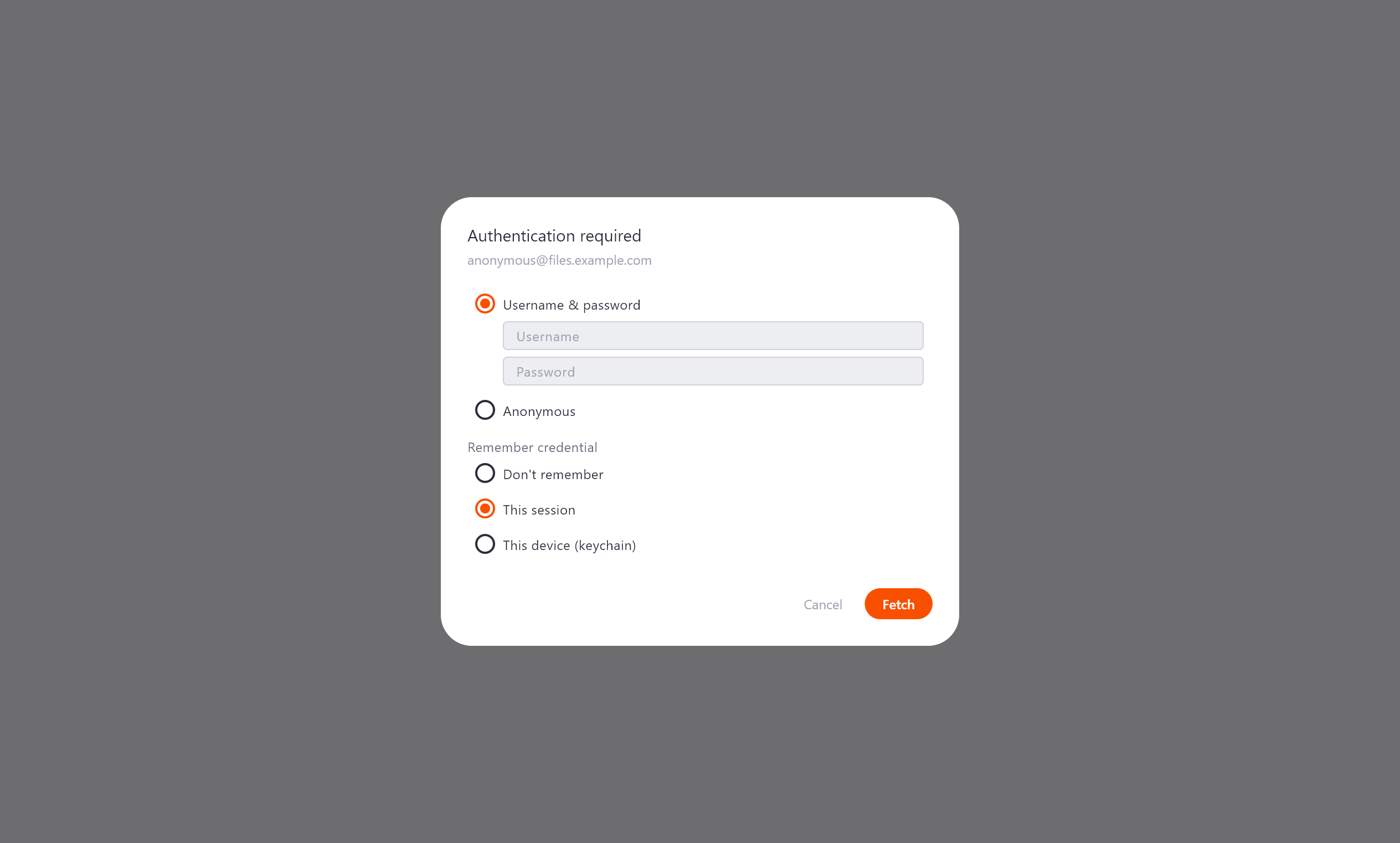
ftp://[user@]host[:port]/path(default port21) orftps://[user@]host[:port]/pathfor TLS (default port990). - Authentication - choose Username & password, or Anonymous for public
servers. If you include a username in the URL (
ftp://bob@host/…) it is pre-filled. - TLS (
ftps://) - the connection is encrypted: an implicit-TLS server (port990) is negotiated from the first byte, otherwise Diffract upgrades the connection withAUTH TLS. The data channel is encrypted too.
Warning
Plain ftp:// is unencrypted - your username, password, and the file
contents travel in clear text. Prefer ftps:// (or SSH/SFTP) on untrusted
networks.
Entering a remote URL
You can start a remote comparison from either entry point:
- Welcome screen - type or paste an
http(s)://URL into the Left or Right input and click Compare. - Path bar - in an open comparison, type or paste the URL into a side's path bar and press Enter.
Pressing Enter or clicking Fetch starts the download.
When a comparison is opened with a remote URL that hasn't been fetched yet, Diffract fetches it automatically.
Authentication
Public URLs load with no further input. If the server requires authentication
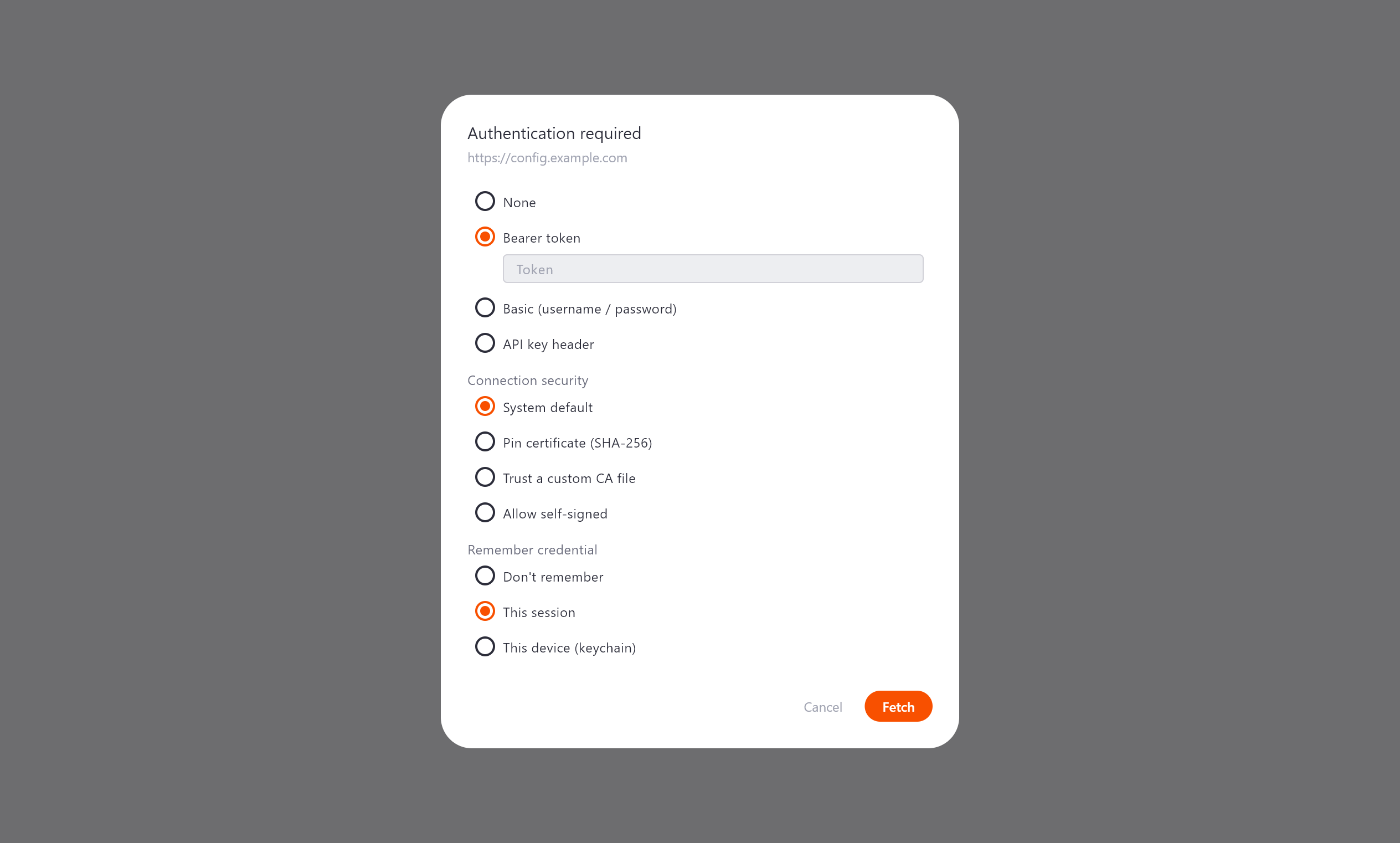
(returns 401/403), a credential dialog appears:
- None - no authentication.
- Bearer token - sent as an
Authorization: Bearer <token>header. - Basic (username / password) - sent as a standard
Authorization: Basicheader. - API key header - a custom header name and value of your choice.
For SSH/SFTP, cloud, and FTP/FTPS sources, a credential is requested before the first connection (there is no "try then 401" handshake).
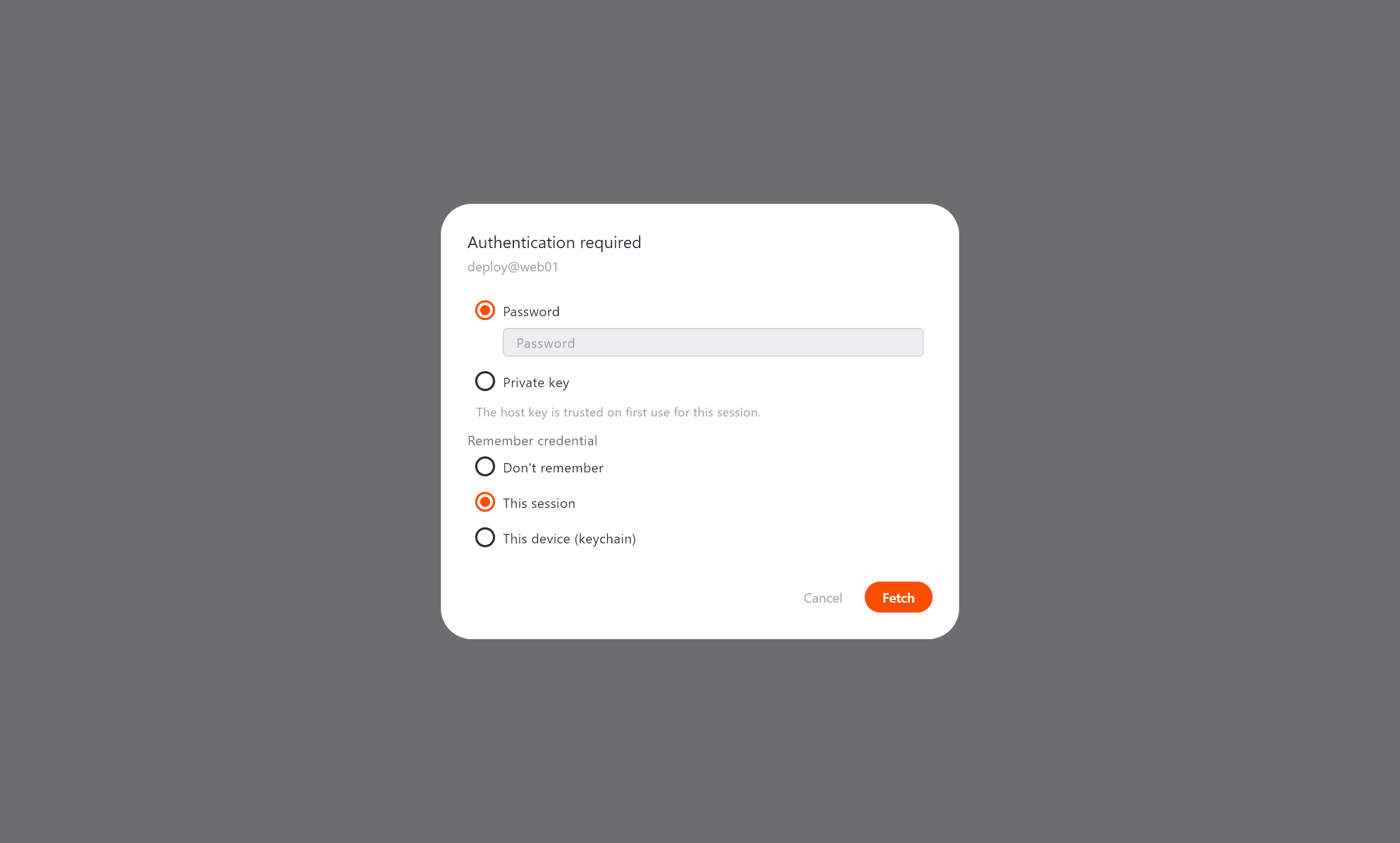
For SSH/SFTP, choose either:
- Password - your account password on the host.
- Private key - browse to an OpenSSH ed25519 or RSA key file; enter the passphrase if the key is encrypted.
For cloud object storage, choose the method that matches the provider - AWS access key / secret or default credential chain (with region and optional custom endpoint), Azure shared key or SAS token, or a GCS bearer token - or Public for unauthenticated access. See Cloud object storage above for the per-provider details.
For FTP/FTPS, choose Username & password or Anonymous (see FTP / FTPS above).
Under Remember credential, choose how long the credential is kept:
- Don't remember - the credential is used once and discarded.
- This session - cached in memory so you are not re-prompted on refresh; cleared when you quit Diffract.
- This device (keychain) - saved in your operating system's secure credential store (Windows Credential Manager, macOS Keychain, or the Linux secret service) so it survives a restart. Nothing is written to ordinary settings or to disk in clear text. You can review and remove saved credentials under Settings → Remote Sources.
Connection security (HTTPS)
For https:// sources, the credential dialog also has a Connection security
section that controls how the server's TLS certificate is verified:
- System default - validate against the operating system's trust store (the normal, safe behaviour).
- Pin certificate (SHA-256) - accept only a certificate whose SHA-256 fingerprint matches the value you enter; anything else is refused.
- Trust a custom CA file - trust certificates that chain to a CA bundle (PEM) you point at - useful for an internal corporate CA.
- Allow self-signed - accept any certificate. Least safe; use only on hosts you control.
If a fetch fails because the certificate can't be verified, re-run it and pick one of these options to trust the host. Your choice is remembered per host and can be managed later under Settings → Remote Sources.
Host-key trust (SSH)
The first time you connect to an SSH host, Diffract records its host-key
fingerprint and trusts it on first use for the session. If the host key later
changes within the same session, the connection is refused with a host-key
mismatch (a guard against man-in-the-middle attacks). Diffract also reads your
~/.ssh/known_hosts to recognise hosts you already trust. Persistent,
cross-session host-key storage arrives in a later release.
Fetch states
While fetching, the path bar shows a progress indicator and the Fetch button becomes a Cancel button.

On success:
- A Remote badge (accent colour) appears on the path bar.
- A Refresh button appears - click it (or press F5) to re-fetch the same URL with the cached credential and update the diff. This is handy when the remote file changes and you want to see the difference.

On error, the path bar border turns red and an inline message explains the problem
(for example Not found (404), Connection refused, or Request timed out) with a
Retry button.

Watch mode
Once a remote side has loaded, a clock button (🕓) appears on its path bar. Click it to watch that side: Diffract checks the remote file on a timer and, when it changes, automatically re-fetches it and updates the diff - no manual refresh needed. The button is tinted while watching; click it again to stop. Each side is watched independently.
The check is cheap: rather than re-downloading the file every time, Diffract asks the
server only for the file's metadata (an HTTP HEAD returning the ETag /
Last-Modified, an SFTP stat, an S3 ETag, or an FTP MDTM/SIZE) and downloads
the body again only when that metadata indicates a change.
The polling interval defaults to 60 seconds and can be changed under Settings → Remote Sources. Watch mode is session-only - it does not persist across restarts.
Content type and size
- Diffract decides whether the fetched content is text or binary from the response's
Content-Type(falling back to a content sniff). Text loads into the side-by-side text view; anything else loads into the hex view. - Remote fetches are capped at 50 MB. Larger resources are rejected with an actionable error.
Remote directory comparison (SSH, S3, and FTP)
You can compare two remote directories side by side - two SSH paths, two S3 folder prefixes, or two FTP directories:
- Start a Directory comparison (the + Directory button or the welcome screen).
- Type a directory into each side's path bar and press Enter - an
scp://user@host/pathdirectory, ans3://bucket/prefix/folder, or anftp://host/path/directory (a trailing slash marks it as a folder).
The tree is listed (over SFTP, via the S3 ListObjectsV2 API, or with FTP
MLSD/LIST) and compared by
name and size - a file present on
both sides with the same size is shown as unchanged; a different size is shown as
modified; entries on only one side are added/removed. Subdirectories are listed
lazily as you expand them, so large trees stay responsive. Click a file row to open
it in a file comparison, which fetches both sides' contents for a full line-by-line
diff.
Note
Remote directory diff compares by name and size only. Two same-size files with different contents appear unchanged in the tree until you open them. Mixing a local directory with a remote one is not supported - both sides must be remote.
Privacy
Remote comparison is the one feature that makes outbound network connections, and only to the host you type into the path bar. No URLs, file contents, or credentials are sent anywhere else. Credentials are kept in memory unless you explicitly choose This device (keychain), in which case they are stored only in your operating system's encrypted credential store - never in plain text or in ordinary settings. See the App Privacy Policy for details.
Command line
Headless mode can compare an HTTP/HTTPS URL, an scp:// path, a cloud object
(s3://, az://, gs://), or an ftp:// / ftps:// path against a local file,
with optional authentication (HTTP headers, --ssh-password / --ssh-key, the
--aws-* / --azure-* / --gcs-token flags, or --ftp-user / --ftp-password).
See the CLI Reference.